18 May 2026
How to Migrate Facebook Assets to Business Manager
Migrating Facebook assets to Business Manager helps businesses organise Pages, Ad Accounts, and user access more securely. This guide shows how to transfer and manage your Facebook assets in one central location.
Guide
Goal: To migrate Facebook assets (such as Facebook Pages and Ad Accounts) from a personal Facebook profile to Facebook Business Manager.
Ideal Outcome: All your Facebook assets are managed under a Business Manager account, making it easier to organise and control access.
Prerequisites or requirements:
You must have a Business Manager account. If you do not have one yet, follow the “Create a Business Manager Account” section in SOP 010 (web version).
Why this is important:
Business Manager allows you to manage Facebook Pages, Ad Accounts, and team access from one central location. This is particularly useful for businesses that work with employees, agencies, or contractors. For example, an Australian retail brand in Sydney can manage its Facebook advertising team without needing to share personal Facebook login details.
Where this is done: Inside Facebook Business Manager.
When this is done: As early as possible. There are no downsides to setting this up early in your business operations.
Who does this: The person who owns the asset and the person who has Admin access to the Business Manager account.
Migrating Facebook Pages and Ad Accounts from a Personal Profile to Business Manager
Note: Facebook Business Manager should always be used to manage Facebook assets. This applies whether you are a business managing your own advertising or a marketing team working with multiple accounts.
Important:
You should only claim Facebook Pages and Ad Accounts if you are the rightful owner of those assets.
If you are an agency, freelancer, or employee working on behalf of another business, you should not claim the assets. Instead, request access from the owner so they can assign you the appropriate role.
Access required: Admin
Typical scenario:
In the early days of a business, a Facebook Page or Ad Account may have been created using a personal Facebook profile. As the business grows, it becomes better practice to manage these assets through Business Manager. This allows the business to easily grant or remove access for employees, freelancers, or agencies when needed.
Who performs this action:
The Admin of the Business Manager account who wants to claim the assets. This is often the business owner, CEO, or another trusted member of the organisation.
Migrating Facebook Pages to Business Manager
Log in to your Business Manager Settings.
In the sidebar, click Pages → Add → Add a Page.
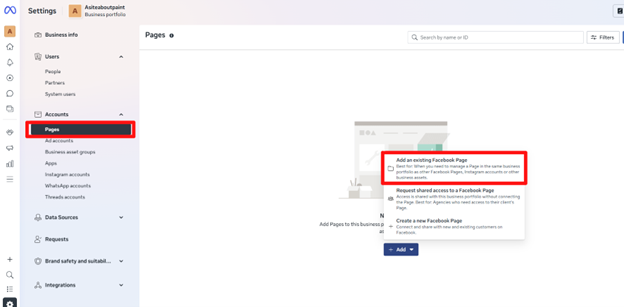
Search for your Facebook Page name, or paste the Page URL, then click Add Page.
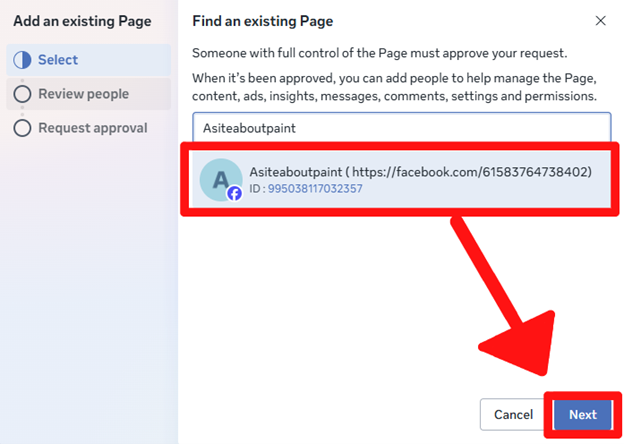
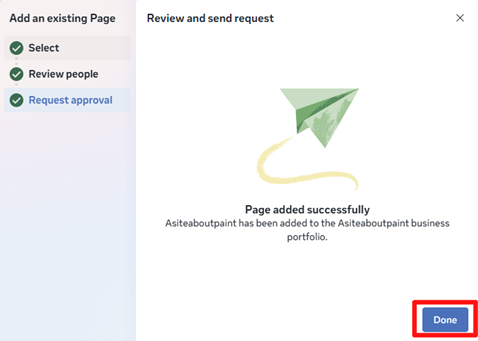
That’s it. Your Facebook Page has now been added to your Business Manager.
If you were already an Admin of that page, the request will usually be approved immediately and the page will appear inside your Business Manager account.
Migrating Ad Accounts to Business Manager
Log in to your Business Manager account.
In the sidebar, click Ad Accounts → Add → Add an Ad Account.
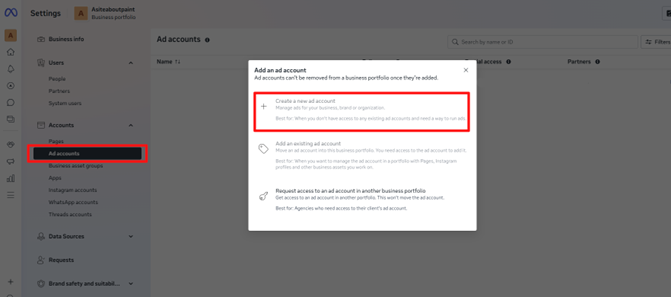
You will see a field requesting your Ad Account ID.
To find your Ad Account ID:
- Open Facebook Ads Manager.
- Click the dropdown menu in the top left corner.
- Copy the Ad Account ID displayed there.
Paste the Ad Account ID into the field, then click Add Ad Account.
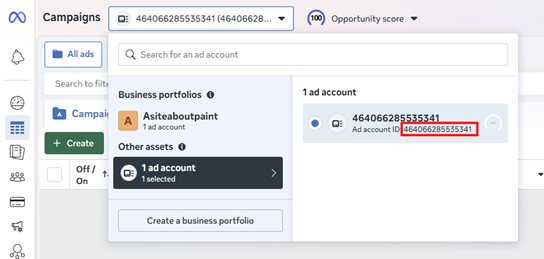
That’s it. Your Ad Account has now been claimed and added to your Business Manager.
If you were already an Admin of that Ad Account, you will automatically retain Admin access within Business Manager.