09 Jun 2026
How to Link Google Merchant Centre with Google Ads
Linking Google Merchant Center with Google Ads is essential for running shopping campaigns and improving product visibility. This guide shows how to connect both accounts for better performance and data integration.
Guide
Goal: To link your Google Merchant Centre to your Google Ads account.
Ideal Outcome: You successfully link your Google Merchant Centre to your Google Ads account.
Prerequisites or requirements:
- You will need a Google Merchant Centre account
- You will need a Google Ads account
- To set up Google Merchant Centre, refer to SOP 213 (web version)
- If you do not have a Google Ads account, refer to SOP 014 (web version): Creating a Google Ads account
Why this is important: Linking your Google Merchant Centre account to Google Ads allows your business to use retail-focused campaign tools and leverage Merchant Centre data to improve your online visibility and performance.
Where this is done: In Google Merchant Centre and Google Ads.
When this is done: Only once.
Who does this:
- Business owner or manager
- Local or agency digital marketer
Request link to Google Ads in Merchant Centre
- Go to Google Merchant Centre here and click “Sign In”
- Select your Gmail account and log in with your password
- Click “Next”
To link to your own Google Ads account:
- Click the settings menu icon [Gear]
- Select “Apps”
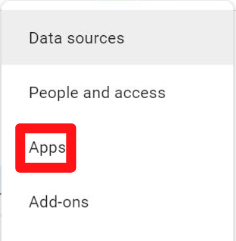
- Under Google apps:
- Click “Add Google Ads”
- If both accounts use the same Gmail:
- Your Google Ads customer ID will appear
- Select:
- “Link to your Google Ads account”
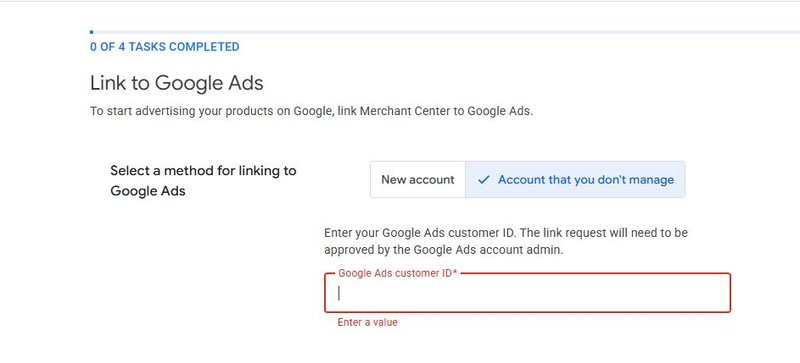
- Click “Link account”
- Click “Link account” again to confirm and allow data sharing
To link to another Google Ads account:
- Click:
- “Link to a Google Ads account that you don’t manage”
- Enter the Google Ads customer ID
- Click “Send link request”
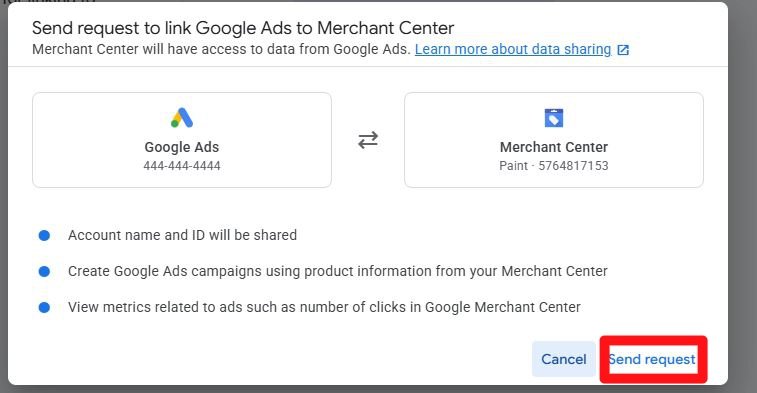
To find the customer ID:
Approve the request link in Google Ads
- Go to Google Ads here and click “Sign in”
- Click:
- “Admin” button or [Gear] icon
- Select “Linked accounts”
- Under Google Merchant Centre:
- Click “Manage & link”

- You should see a notification such as:
- “1 received”
- Click:
- “Received” tab
- Then “Review”
- Click “Approve” to accept the request and enable data sharing
How to cancel a link request in Merchant Centre
- In your Merchant Centre account:
- Click the settings menu icon [Gear]
- Select “Apps”
- Under “Google apps”:
- Choose the linked account you want to remove
- Click “Delete connection”
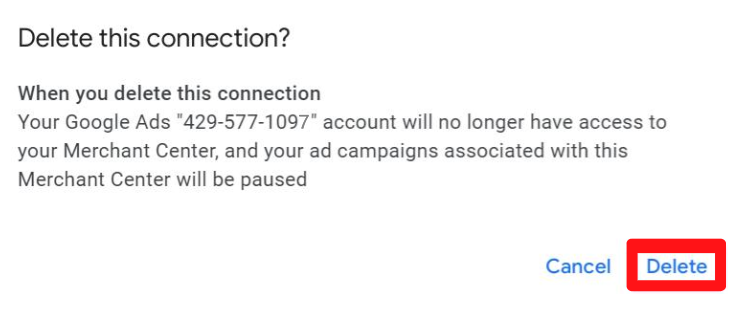
- Click “Delete” to confirm cancellation