29 Jul 2026
How to Install Google Tag Manager on Squarespace
Installing Google Tag Manager on Squarespace helps you manage tracking codes and marketing tags without manually editing your website code each time. This guide explains how to correctly add and verify GTM on your Squarespace site.
Guide
Goal: To install Google Tag Manager on a Squarespace site.
Ideal Outcome: Google Tag Manager is set up correctly and running without any technical problems.
Prerequisites: This method works for all Squarespace plans except the Personal plan.
Why this is important: Google Tag Manager allows you to add, update, and manage tracking pixels and marketing scripts without needing to manually adjust your site’s code every time.
Where this is done: Inside your Squarespace dashboard and within Google Tag Manager.
When this is done: Only once, during your initial installation.
Who completes this: Anyone responsible for website maintenance, analytics, or marketing operations.
Environment Setup
Install the Google Tag Assistant Chrome Extension (free).
Then grab your Google Tag Manager container snippets.
If you don’t yet have a Google Tag Manager account
Sign up for Google Tag Manager (free).
Log in with your Google account.
You’ll immediately be guided through creating a Tag Manager account. You can simply use your business or website name for both the Account and Container fields.
Under “Where to Use Container”, select Web.
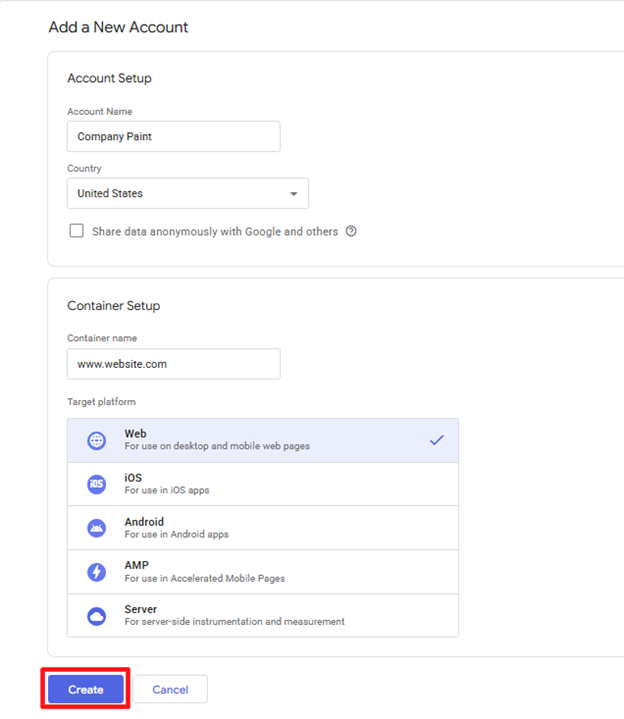
Accept the terms and conditions.
Your Google Tag Manager installation code will appear.
Copy the first code snippet, you’ll need it shortly.
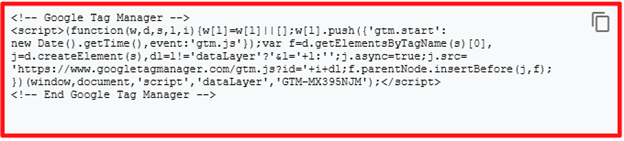
Then copy the second snippet underneath, you’ll also paste this into Squarespace later.

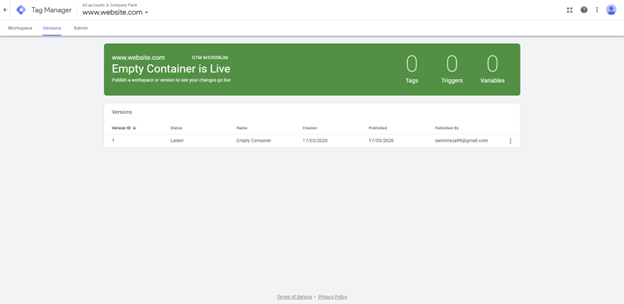
Once inside your Workspace, publish your container by selecting
Submit → Publish → Continue.
If you already have a Google Tag Manager account
Log into Google Tag Manager.
In the top menu, click Admin → Install Google Tag Manager.
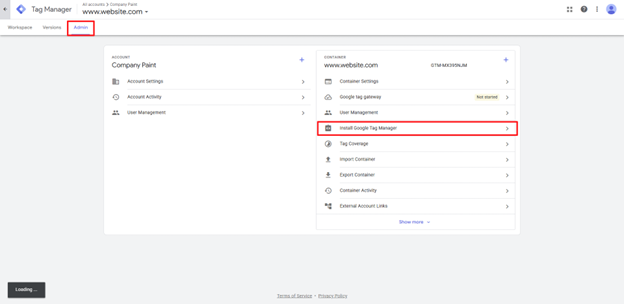
Copy the first snippet shown, you’ll need it for the setup steps.
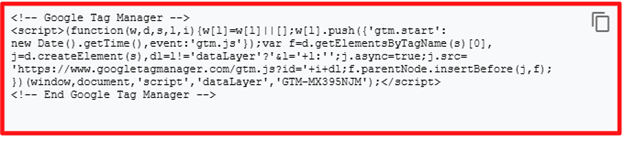
Copy the second snippet below it, you’ll also paste this into your Squarespace settings.

Adding Google Tag Manager to Your Squarespace Site
Log into your Squarespace account.
Choose the website you want to add Tag Manager to:
In the sidebar, select Settings → Advanced → Code Injection.
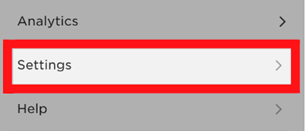
Paste both Google Tag Manager snippets into their respective fields, following the layout shown below:
At the top of the page, click Save.
That’s all you need to do!
Checking Your Installation
Open your site’s homepage in Chrome.
Open the Google Tag Assistant extension.
Click Enable.
Refresh your homepage and open the extension again.
A green Google Tag Manager tag should appear, confirming the installation is working correctly.