23 Jun 2026
How to Set Up a Google Business Profile
A Google Business Profile is essential for improving your visibility in local search results. This guide walks you through setting up your profile, verifying your business and preparing it to attract customers on Google Search and Maps.
Guide
Goal: Create a new Google Business Profile account.
Ideal Outcome: You will successfully create a Google Business Profile so you can manage your business or your client’s business on Google.
Prerequisites or requirements: Google requires a physical mailing address so they can send a verification postcard (or verification documentation). Even if your business does not serve customers at your location, you must still provide an address for verification.
Why this is important: A Google Business Profile is essential for any business with a physical presence or those that service customers within a defined area. It helps potential customers find your business when searching on Google Search or Google Maps, for example, cafés in Brisbane, plumbers in Melbourne, or beauty salons in Perth.
Where this is done: In Google Business Profile.
When this is done: Only once, the first time you set up Google Business Profile.
Who does this: The business owner, manager, or digital marketing/SEO professional.
Set Up Your Google Business Profile and Request the Verification Postcard
If you're creating a Google Business Profile for your own business:
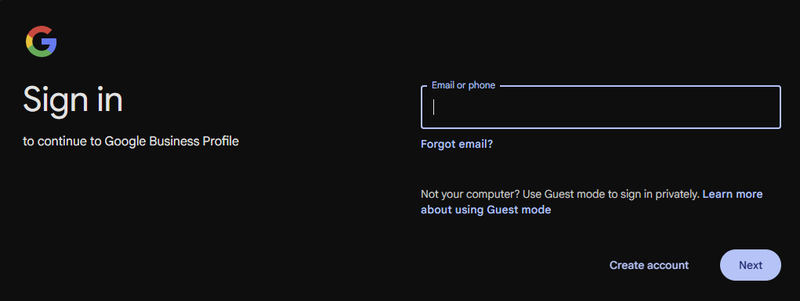
Sign in to the Google Account you will use to manage the profile.
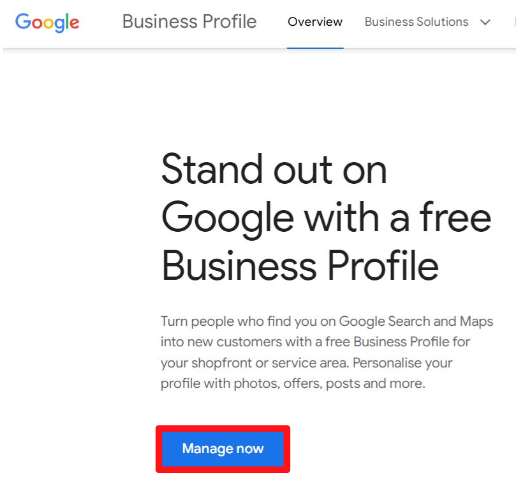
Visit the Google Business Profile website and click “Manage now.”
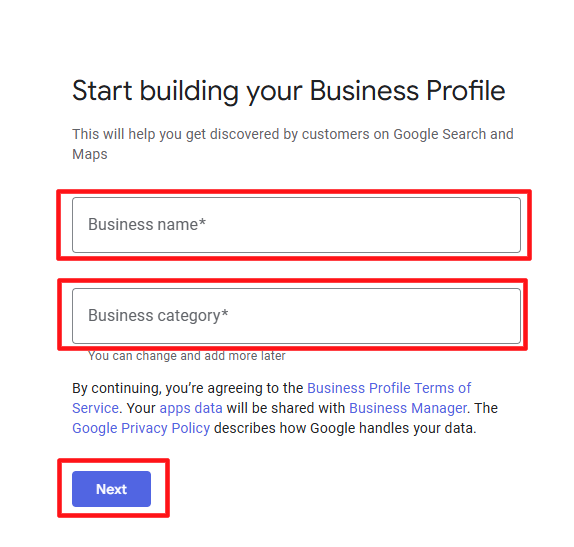
Enter your business name and select the most relevant business category to get started.
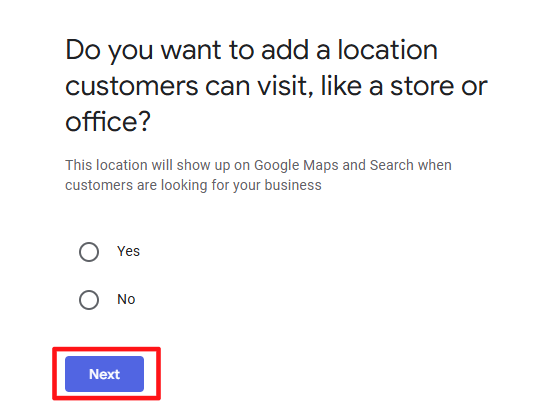
If you want to add a physical business location, click “Yes.” Then click Next.
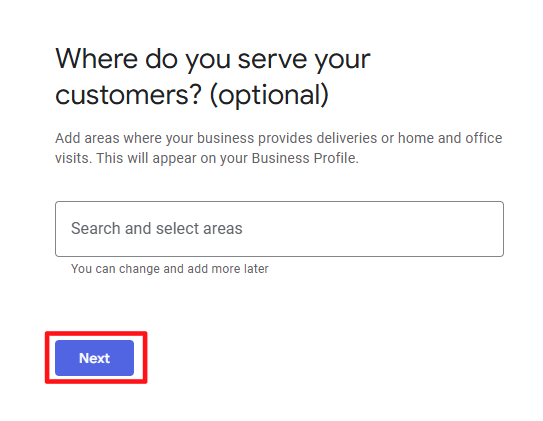
Next, enter the service area your business covers. You can list multiple areas (e.g., “Sydney CBD,” “Parramatta,” “Inner West”).
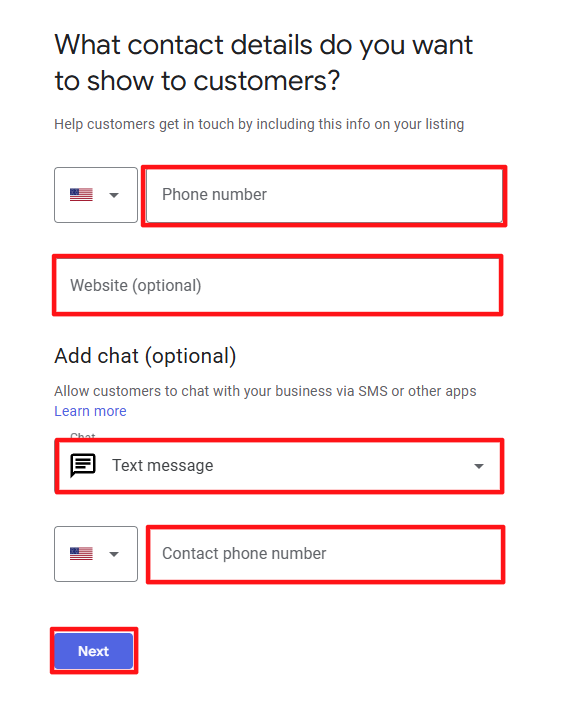
Add your business phone number and/or website link, then select Next.
Enter your business mailing address for verification, then click Next.
Add and customise the services your business provides.
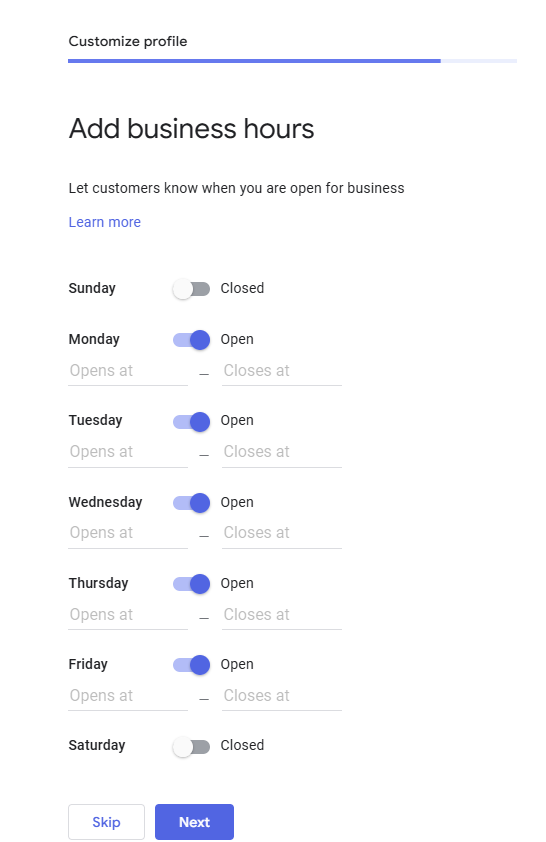
Choose your business hours.
Enable messaging, which allows customers to contact you directly from your profile. This is strongly recommended.
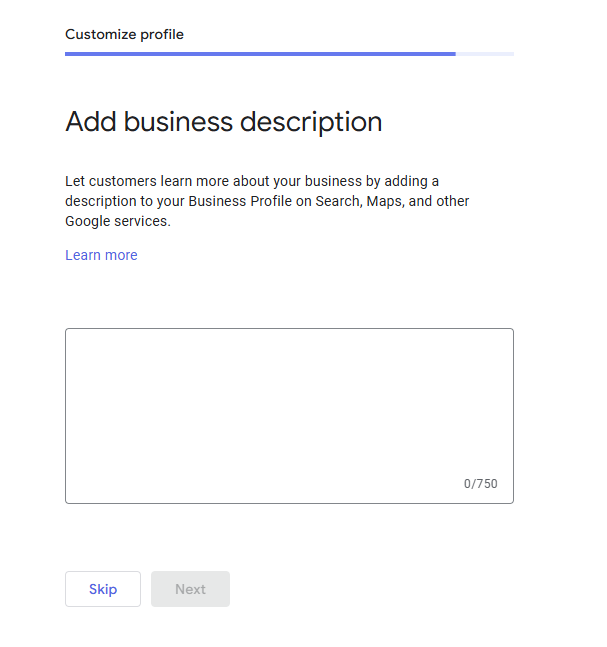
Add a short business description (maximum 750 characters).
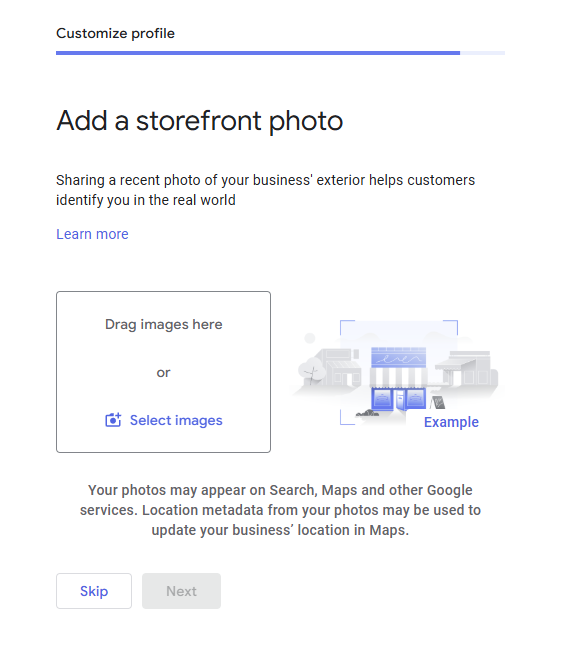
Upload business photos, such as your storefront, products, or service examples.
Once completed, you can view your Google Business Profile from your Google account dashboard. You can also edit your information and review performance after verification is complete.
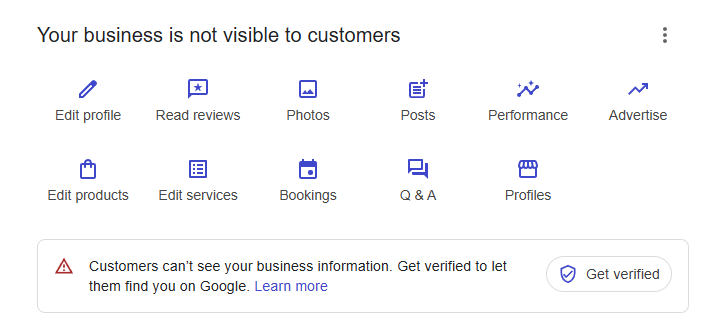
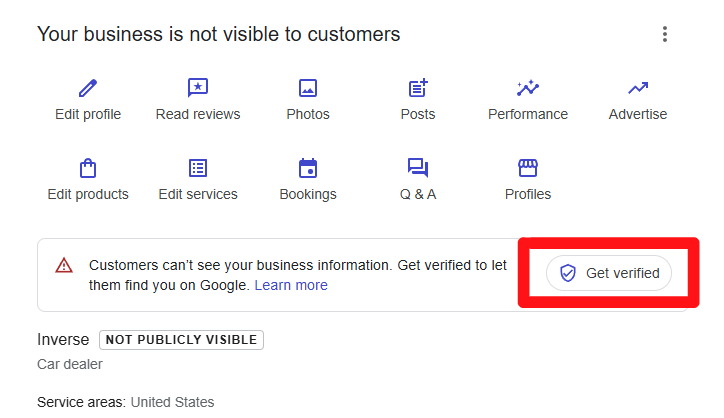
Note: Your Google Business Profile will not be publicly visible until Google verifies it.
If You’re Setting Up a Google Business Profile for a Client
We recommend doing this through your agency’s Google Business Profile Organisation Account.
(If you do not have one, follow SOP 102 to create it.)
- Log into your organisation dashboard.
- Ensure you are on Google Business Profile Manager, not your general Google Account.
- Click Businesses on the left-hand menu.
- Select the correct location group, then click Add Business → Add a single business.
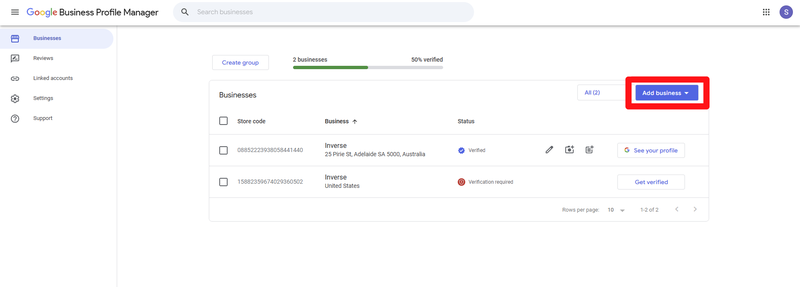
Google will show two options:
- Create a new business (most common).
- Claim an existing business if the business already has a Google profile.
Type in the business name and business category, then click Next.
Choose whether the business has a physical location customers can visit:
- Select Yes for physical stores, offices, clinics, etc.
Add the full business address, then select the matching business on Google Maps.
If the business serves customers outside the location (e.g., delivery, mobile services), you may add a service area.
If the business does not have a physical shopfront (e.g., electricians, photographers, mobile mechanics), select No.
After completing this step, you will see a success screen.
Verifying Your Business
To appear publicly on Google Search and Google Maps, your business must be verified.
Go to your Google Business Profile dashboard and click Get Verified.
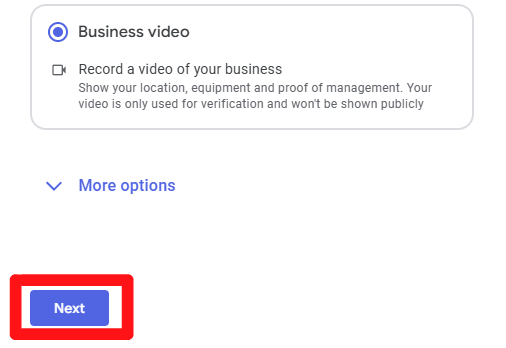
Select Business video as the verification method, then click Next.
Review Google’s requirements and recommendations for video verification. Plan your recording before starting.
Using your mobile phone, scan the QR code. Make sure you are logged into the correct Google Account.
Video verification requirements:
- Minimum duration: 30 seconds
- Maximum duration: 5 minutes
- Recommended duration: 1–2 minutes
After uploading your video, Google will review your submission. Verification typically takes up to 5 business days.
Once approved, you will be able to manage and update all your Google Business Profile settings.
Optional: Deleting Your Verification Video
You can delete your verification video at any time. If deleted, both you and Google lose access to it.
On your mobile device:
- Open your Business Profile.
- Tap More (top right).
- Select Advanced settings.
- Tap Video uploads → Delete videos.
Once complete, your Google Business Profile will be ready for customers to see, boosting your visibility on Google Search and Maps.