29 Apr 2026
How to Add Q&A to Your Google Business Profile
Adding Q&A to your Google Business Profile is a key part of local SEO. This guide explains how to create and manage questions and answers to help customers find information quickly and engage with your business.
Guide
Goal: To add Q&A to your Google Business Profile.
Ideal Outcome: Add a Q&A section to your Google Business Profile so customers can ask questions about your business.
Prerequisites or requirements:
You need to have a Google Business Profile account already set up for this business. If you don’t have one, you can follow SOP 100 (web version): Set up a new Google Business Profile account. If a Google Business Profile account already exists, you need to have access to manage it. If access is restricted, you may provide SOP 206 (web version): How to manage user access for Google Business Profile to the business owner.
Why this is important: Listing FAQs in your Google Business Profile is an important element of local SEO. It allows businesses with a physical presence to attract new customers through Google.
Where this is done: In Google Business Profile.
When this is done: The FAQs and answers are typically added once and only need to be reviewed if there are changes to your business (for example, changes to opening hours, new services, or new products).
Who does this: The business owner, manager, or marketer who has admin access to the Google Business Profile.
Environment Setup:
Make a copy of a template or spreadsheet to create a list of common questions that customers may ask about your business before adding them to your Google Business Profile.
How to seed Q&A to the Google Business Profile
Visit the Google Business Profile website and click “Start now”.
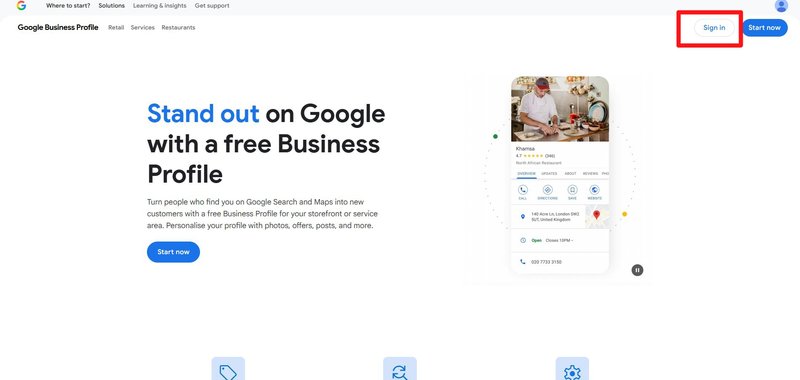
Next, sign in to the Google Account used to manage the business.
Click “See your profile” for the business you want to work on. Ensure that you are on the Google Business Profile Manager page and not your personal Google account page.
You will be directed to your Google Business Profile page. Click on the “Q&A” section.
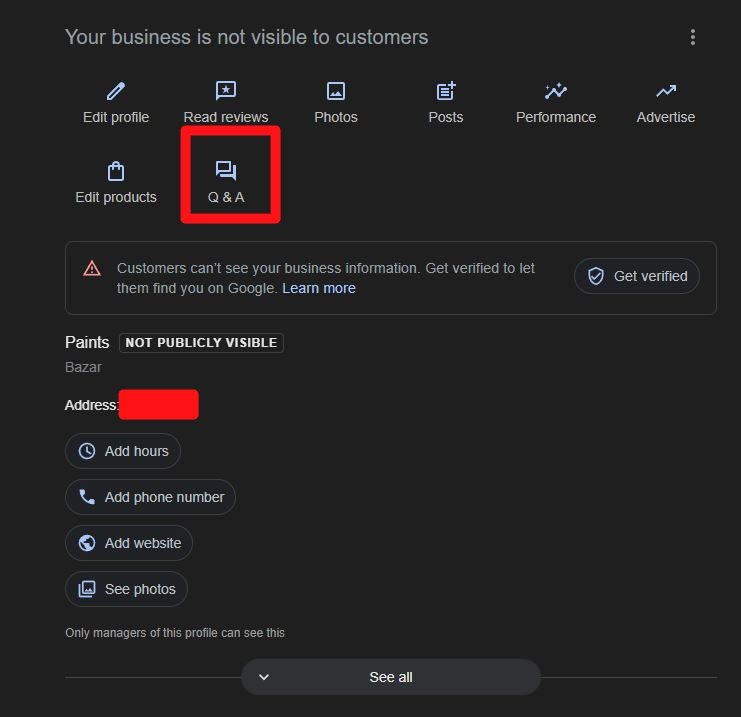
A pop-up will appear. Click the “Ask a question” button.

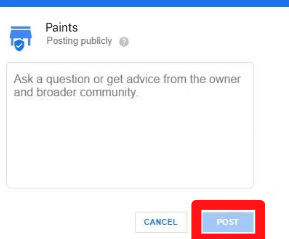
Type your question and then click “Post”.
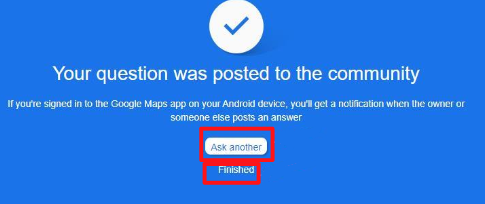
From here, you can continue adding more questions by clicking “Ask another”, or click “Finished” to resume later.
Note: It is recommended to add several common questions at once and answer them afterwards.
How to edit or delete Q&As on the Google Business Profile
You can edit or delete your questions by clicking the three-dot menu next to the question.
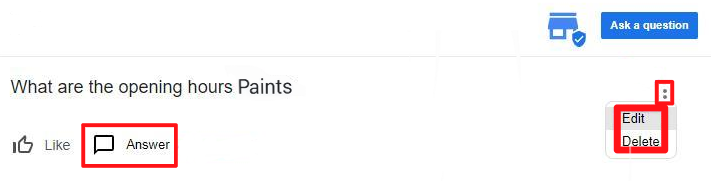
To answer a question:
- Click the chat icon below the question.
- The “Answer the question” text box will appear below the question.
- Enter your response and click “Post”.
To review the list of Q&As:
- Return to your Google Business Profile page.
- Refresh the page.
- Click “See all questions” to review all questions and answers submitted by users.