09 Apr 2026
How to Create a Facebook Remarketing Campaign for Abandoned Carts
Remarketing campaigns are one of the most effective ways to recover lost sales. This guide shows you how to create a Facebook remarketing campaign that targets high-intent users and drives conversions with minimal setup time.
Guide
- Steps
- Configure the Conversion
- Activate the Conversion
- Steps
- Configure Audience Rules
- Name the Audience
- Image Requirements
- Create Variations
- Step 1: Campaign Setup
- Campaign Name
- Step 2: Ad Set Configuration
- Ad Set Name
- Conversion Settings
- Audience
- Optional Targeting
- Placements
- Budget
- Optimisation Settings
- Ad Name
- Identity
- Ad Format
- Upload Image
- Ad Details
- Preview
- Publish Ad
- Final Outcome
Goal: To create a simple Facebook (Meta) remarketing campaign targeting users who nearly completed a purchase.
Ideal Outcome: You generate additional sales by targeting high-intent users (e.g. cart abandoners) with a campaign that can be set up in under 30 minutes.
Prerequisites or requirements:
- The Facebook Pixel must already be installed on your website
(refer to SOP 005 if not completed) - You must have:
- Access to Facebook Ads Manager
- A Facebook Business Page
Why this is important: Remarketing campaigns are typically the highest ROI campaigns because they target users who already showed strong purchase intent. Recovering abandoned carts is one of the most efficient ways to increase revenue.
Where this is done: In Facebook Ads Manager and (if applicable) Google Tag Manager.
When this is done: When you have consistent traffic reaching checkout but not completing purchases.
Who does this: The person responsible for paid media or digital marketing.
Environment Setup
Before proceeding, ensure:
- Facebook Pixel is active and firing correctly
- You have access to:
- Facebook Ads Manager
- Events Manager
- Your website includes a thank-you page after purchase
Create a Custom Conversion
This step allows Facebook to optimise your campaign for actual purchases.
Steps
- Open Facebook Ads Manager.
- Go to Events Manager.
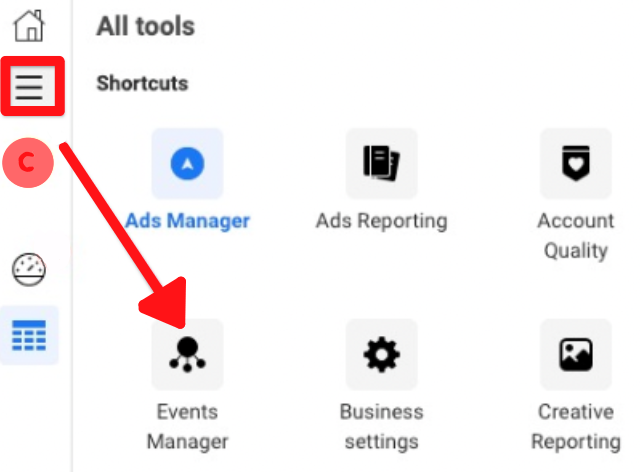
- In the sidebar, click:
Custom Conversions
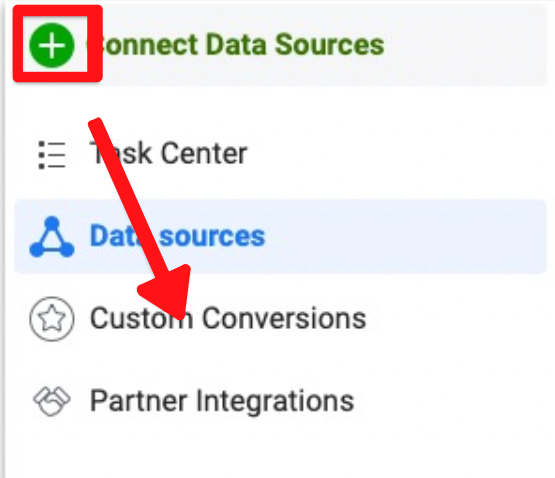
- Click:
Create Custom Conversion
Configure the Conversion
- Name
Purchased – [Product Name]
- Data Source
- Select your Facebook Pixel
- Rule
URL contains → thank-you
(Use your actual post-purchase URL slug)
- Category
Purchase
- Value (Optional)
Enable if your product has a fixed value
- Click:
Create
- Click Done after confirmation.
Activate the Conversion
- Visit your thank-you page manually
- Refresh Events Manager
Status should change from:
- “Inactive” → “Active”
Create a Remarketing Audience
This audience targets users who started checkout but didn’t purchase.
Steps
- In Ads Manager, go to:
Audiences
- Click:
Create Audience → Custom Audience
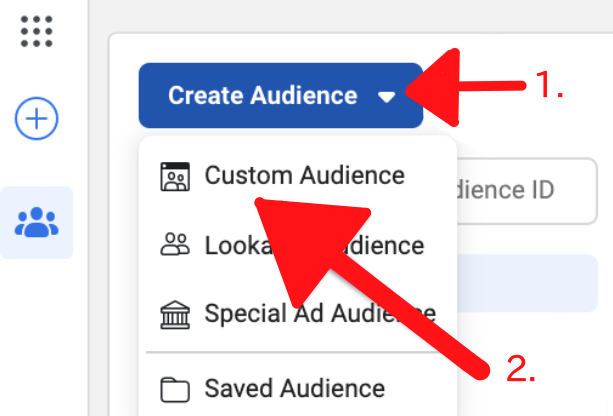
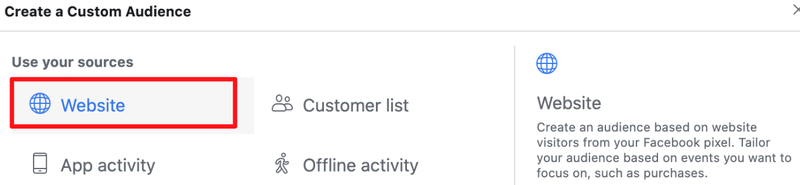
- Select:
Website
Configure Audience Rules
Include (Cart Visitors)
People who visited specific web pages
URL contains → checkout
Exclude (Purchasers)
Click Exclude, then:
People who visited specific web pages
URL contains → thank-you
Name the Audience
Abandoned Carts – [Product Name]
Click:
Create Audience
Note: Audience may take some time to populate.
Prepare Campaign Assets
For your first campaign, use simple image ads.
Image Requirements
- Size: 1200 × 628 pixels
- Format: JPG or PNG
Create Variations
Prepare:
- 2 images
- 2 versions of ad copy
This results in 4 variations:
- Variation 1: Image 1 + Copy 1
- Variation 2: Image 1 + Copy 2
- Variation 3: Image 2 + Copy 1
- Variation 4: Image 2 + Copy 2
Create the Campaign
Step 1: Campaign Setup
- Click:
Create
- Select objective:
Conversions
Campaign Name
Remarketing – [Product Name]
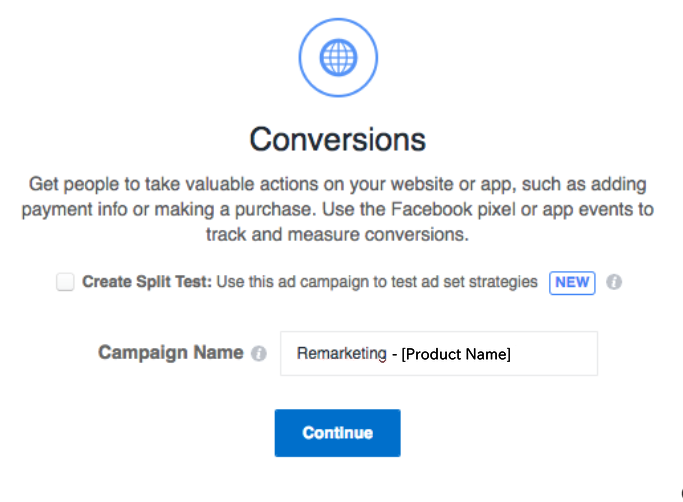
Click Continue.
Step 2: Ad Set Configuration
Ad Set Name
Remarketing – [Product Name] – Abandoned Cart

Conversion Settings
- Conversion Location:
Website
- Select your Custom Conversion
Audience
- Choose your Abandoned Cart audience
Optional Targeting
You may refine by:
- Location
- Age
- Gender
- Language
Placements
Start with:
Automatic Placements
Budget
Recommended starting point:
$10 – $20 per day
Optimisation Settings
- Optimise for:
Conversions
- Conversion window:
1-day click
- Optional: Set a bid cap below your product price
Click Continue.
Step 3: Create the Ad
Ad Name
Remarketing – [Product Name] – Variation 1

Identity
- Select your Facebook Page
- Connect Instagram account (optional)
Ad Format
Single Image
Upload Image
Upload one of your prepared creatives.
Ad Details
Fill in:
- Destination URL
(Use UTM parameters for tracking) - Primary Text
- Headline
- Description
- Call to Action (e.g. “Shop Now”)
Preview
Check all placements and formats to ensure:
- Text is readable
- Images display correctly
Publish Ad
Click:
Publish
Create Additional Variations
To create more ads:
- Go to the Ads tab

- Hover over your ad → click:
Duplicate
- Modify only:
- Image OR
- Copy
Repeat until all variations are created.
Final Outcome
Once approved:
- Ads will be shown to users who abandoned checkout
- Campaign will optimise towards completed purchases
- You will begin capturing lost revenue efficiently
This type of campaign is often one of the highest-performing and quickest wins in paid advertising when implemented correctly.