29 Jul 2026
How to Set Up a Google Analytics 4 Account
Setting up a Google Analytics 4 account is the first step in tracking your website or app performance. This guide shows how to create a GA4 account so you can start collecting and analysing data.
Guide
Goal: Set up a Google Analytics 4 account from scratch.
Ideal Outcome: Successfully create a Google Analytics 4 account ready to be implemented on your website or app.
Prerequisites or requirements:
- You must have a Google account
- If you do not have one, create a Google account before proceeding
Why this is important: Google Analytics 4 is the next-generation analytics platform that replaces Universal Analytics. It is privacy-focused and designed to track customer journeys across multiple devices and platforms more effectively.
Where this is done: Google Analytics.
When this is done: Before making your website or app public.
Who does this:
- Marketing manager
- Marketing consultant
- Any person responsible for marketing strategy
Sign up for a Google Analytics account
- Go to https://analytics.google.com
- Ensure you are signed in with your Google account
If you already have a Google Analytics account:
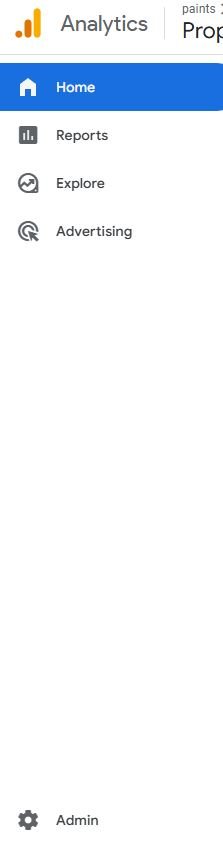
- Go to “Admin”
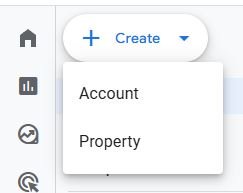
- Click “Create” → “Account”
If you do not have an existing account:
- Click “Start measuring”
Account setup
- Enter an account name
- Recommended: Use your business, brand, or company name
- Avoid using your website name at this stage
- Click “Next”
Note: One account can contain multiple properties.
Property setup
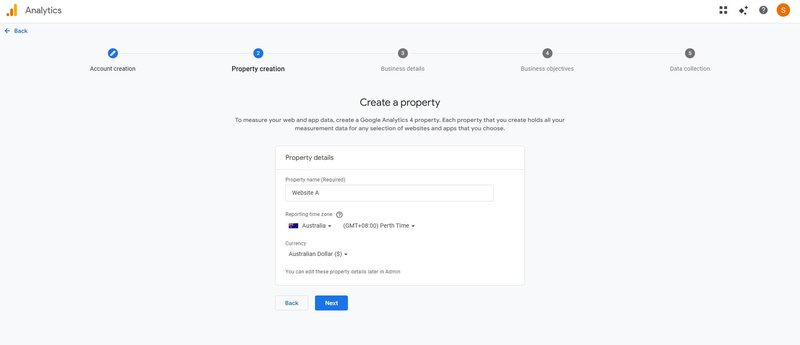
- Enter a property name
- Use your website or app name
- Select:
- Time zone
- Currency
- Click “Next”
Business information
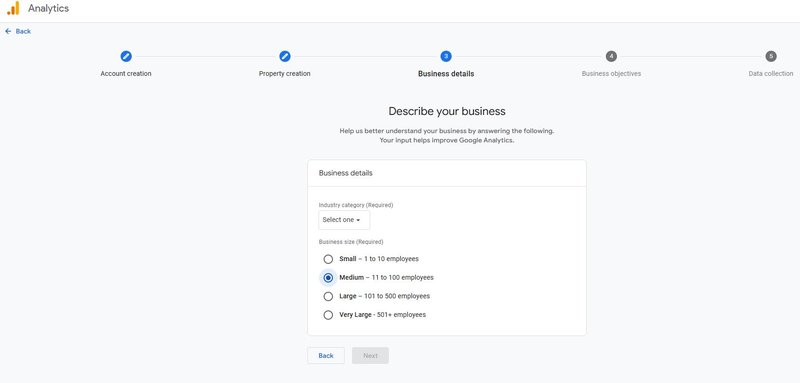
- Enter:
- Industry category
- Business size (number of employees)
- Click “Next”
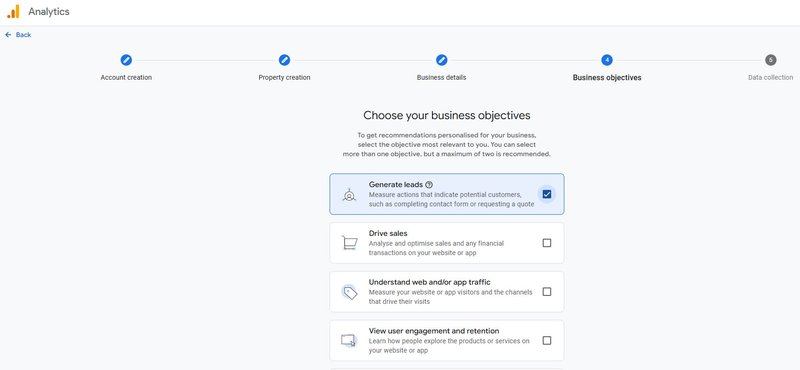
- Select your business objectives (you may choose multiple)
- Click “Create”
- Accept the Google Analytics Terms of Service
Set up a data stream
- Choose your platform:
- Select “Web” (for websites)
- Enter:
- Website URL
- Stream name (for identification)
- Ensure “Enhanced measurement” is enabled
- Click “Create stream”
Completion
- You will be directed to a data stream summary page
- This confirms your Google Analytics 4 account has been successfully created
Next steps
- Connect your GA4 account to your website for tracking
- This can be done using Google Tag Manager or other integration methods
This ensures your data starts collecting correctly once your website goes live.