Goal: To set up a Google Ads account that’s ready for your first campaign.
Ideal Outcome: You gain access to your campaign dashboard and all available Google Ads tools.
Why this matters: With more than 3.5 billion daily searches and over 2 million sites across the Display Network, Google Ads is one of the strongest channels for reaching your audience, whether they’re searching for a local plumber in Sydney or comparing prices for new footy boots.
Where: Inside Google Ads.
When: Whenever a new account is needed.
Who: Whoever handles paid advertising.
Step 1: Create Your Account
- Visit https://ads.google.com/home/
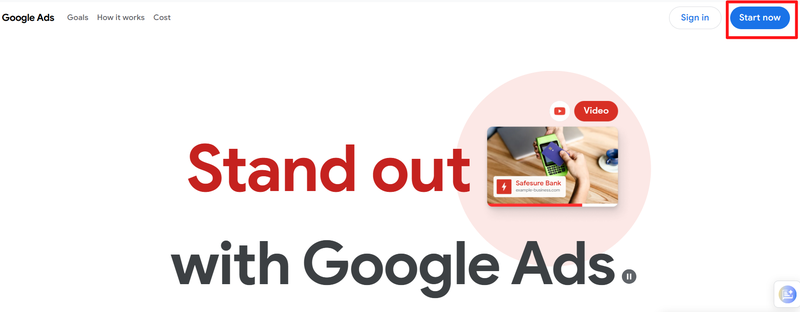
- Click the blue Start Now button.
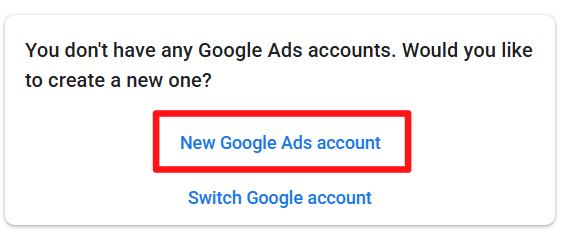
- If the email you’re using already has other Google Ads accounts, select New Google Ads Account.
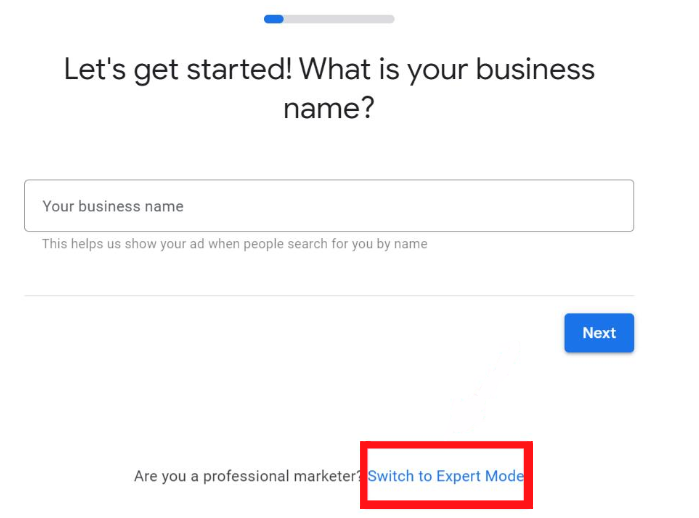
Google will automatically try to take you through its “guided setup”, which pushes you to create an ad straight away. It’s better to skip this so you can access useful tools (like Keyword Planner) before launching anything.
- Scroll down and click Switch to Expert Mode.
- Choose Create an account without a campaign.
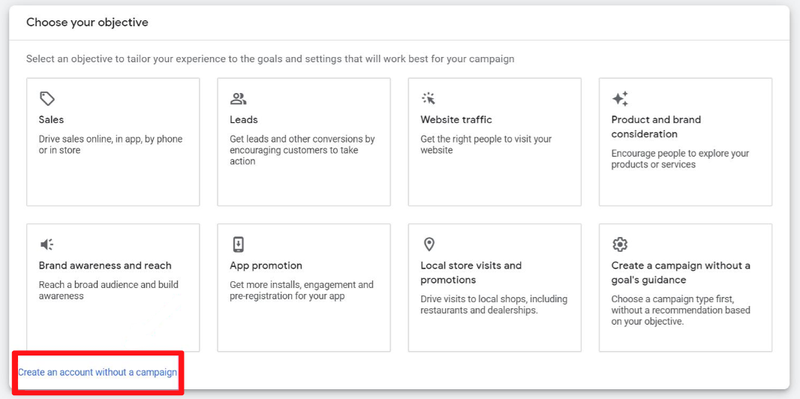
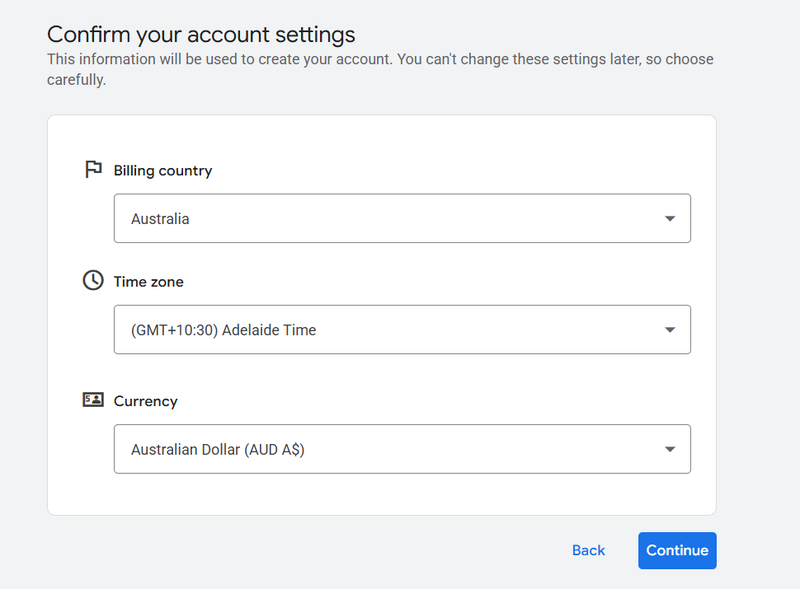
- Enter your details and click Save and continue.
Tip: Choose your billing currency carefully this can’t be changed later.
IMAGE
After this, you’ll be taken straight to your dashboard.
You haven’t added a payment method yet, so you’ll need to do that before running real campaigns.
Enabling Auto tagging (Now Called Campaign URL Options)
Auto tagging is optional but recommended. It automatically attaches tracking info to your URLs so Google Analytics knows which ad a visitor came from. It saves time, reduces mistakes, and gives better reporting. Google now calls this section “Campaign URL Options”.
Step 1: Create a Dummy Campaign
Google requires a campaign to be created before you can enable these settings. This dummy campaign won’t go live or spend anything.
- Log in to Google Ads.
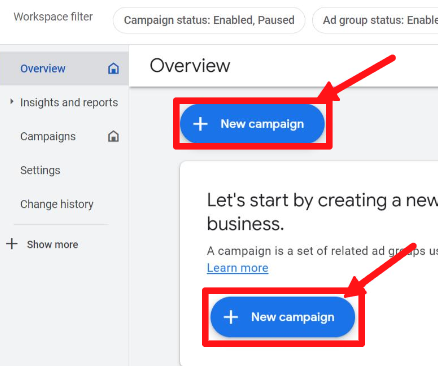
- Click New campaign.
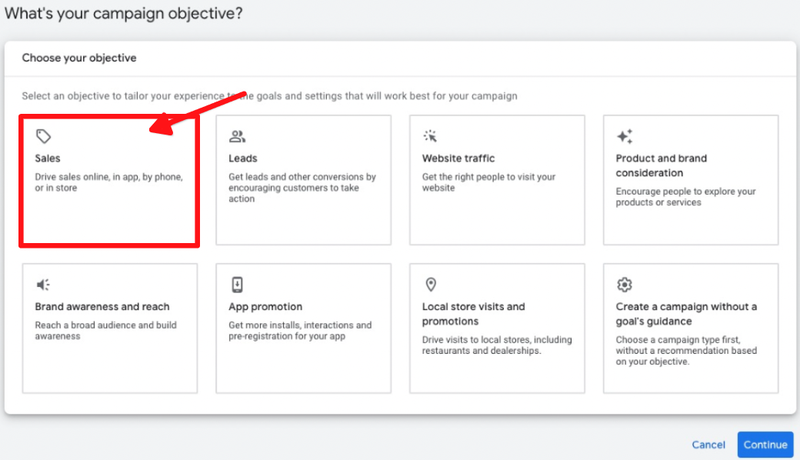
- Choose Sales, then Continue.
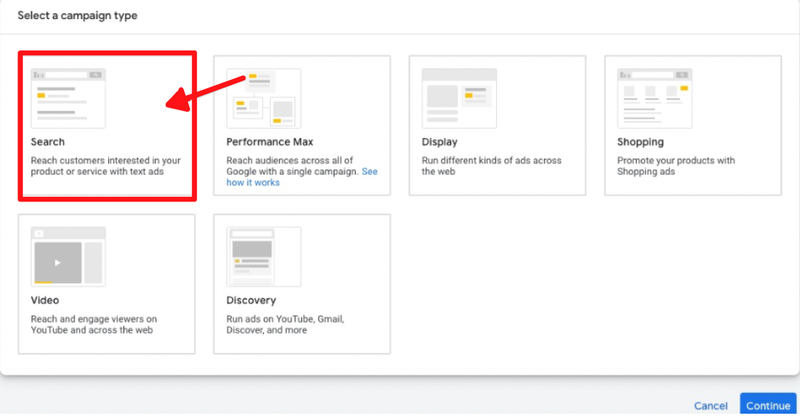
- Select Search.
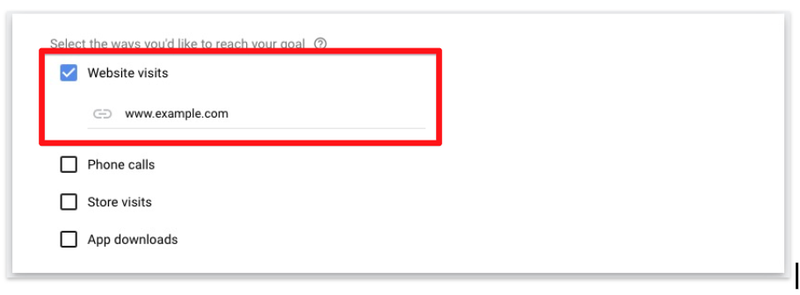
- Choose Website visits and enter your URL.
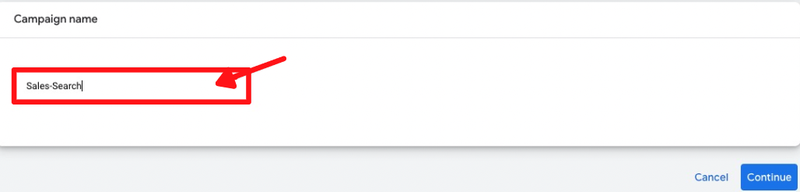
- Give your campaign a name and click Continue.
- In bid settings, choose your bidding strategy. If you want a max CPC limit, tick the box and add your amount.
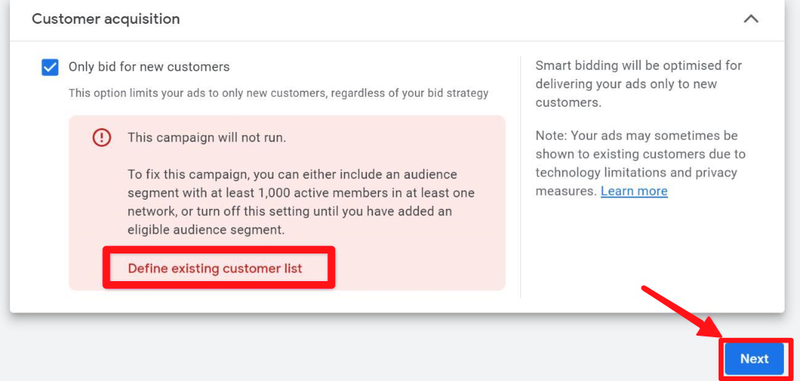
- Under Customer acquisition, it’s usually best to tick the option to prioritise new customers especially for fresh accounts.
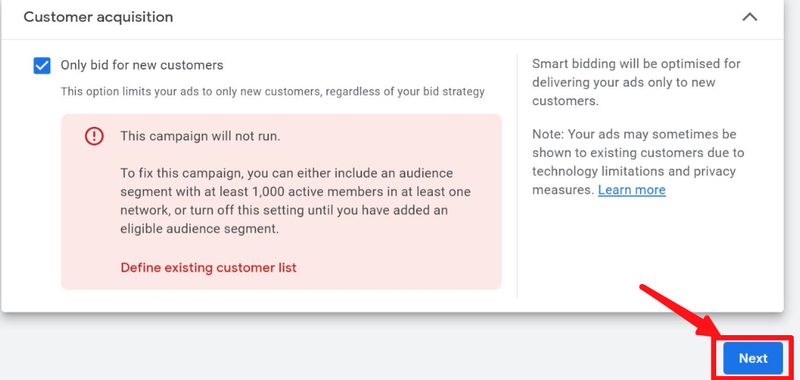
If you don’t have an existing customer list or want to focus more heavily on new customers:
- Click Define existing customer list.
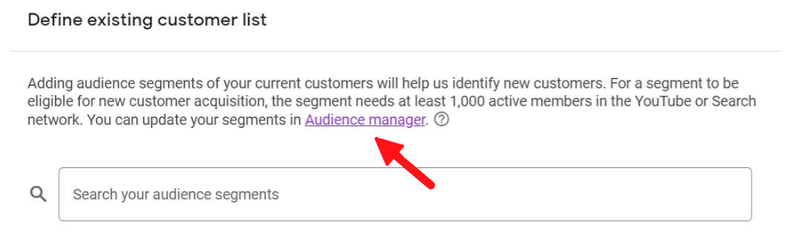
- Select Audience manager and update your segments as needed.
Step 2: Set Up Campaign Details
On the settings page:
- Choose your target locations (e.g. Australia wide or specific states).
- Select your language.
- Optionally choose audience segments.
- Then click Next.
Google will now help you collect relevant keywords.
You can:
- Paste your website link so Google can scan it for keywords.
- Add your own keyword ideas.
- Click Keyword suggestions to expand the list.
Then add all your creative elements:
- Final URL
- Headlines
- Descriptions
- Business name
- Logos
- Sitelinks and callouts
- A preview will appear on the right hand side.
- Enter your daily budget → Click Next.
- Review everything and click Publish campaign.
Your dummy campaign is now active (but can be paused later).
Enable Auto tagging / Campaign URL Options
- Click the Google Ads logo (top left).
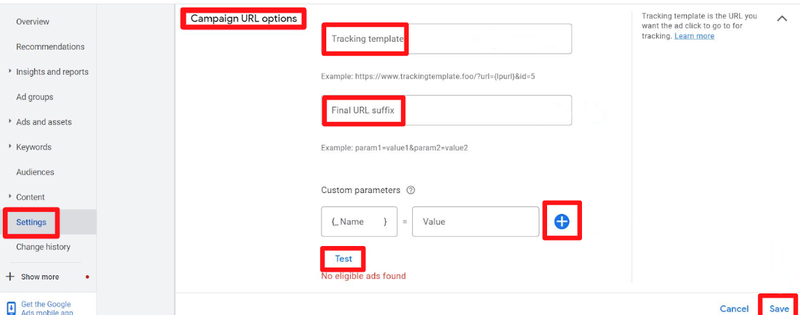
- Go to Settings → Campaign URL Options.
- Add your landing page URL.
- Add a final URL suffix (this is where tracking parameters go).
- Customise your parameters as needed.
- Test your tracking setup.
- Click Save.
Google no longer labels this feature as “auto tagging”, but the function is the same.
(NEW) Activate Dynamic Search Ads
Dynamic Search Ads automatically generate ads based on your website content.
- Enter your website URL
- Choose your preferred language
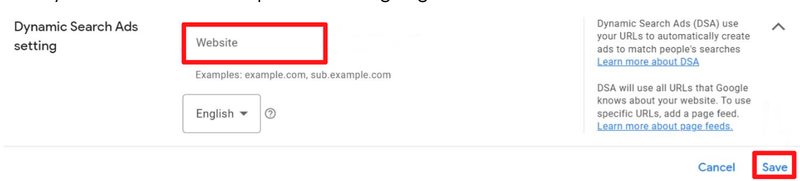
- Click Save
Final Step
Within about 24 hours of your ads running, you should start seeing Google Ads traffic inside Google Analytics.
Don’t forget to pause or remove your dummy campaign afterwards.