Goal: Have BDOW installed on your website using Google Tag Manager
Ideal Outcome: Successfully install the BDOW plugin and use it to grow your website traffic and subscriber base.
Prerequisites or requirements:
- Google Tag Manager must already be installed on your website.
- If you are unsure how to do this, refer to SOP 004 (web version) for step-by-step instructions.
Why this is important: BDOW provides a suite of tools designed to help you grow your website and increase traffic. We recommend installing BDOW via Google Tag Manager because it centralises all scripts and tracking codes in one place. This makes it significantly easier to manage your marketing stack, whether you are running an eCommerce store in Brisbane, a consultancy in Melbourne, or a trades business in Perth.
Where this is done:
- Your website
- Your BDOW account
When this is done: Ideally, as soon as possible. The best time to install growth tools was yesterday, but today works just fine. You only need to complete this setup once, and you can then benefit from BDOW's features ongoing.
Who does this: You do it.
Environment setup
- Confirm Google Tag Manager is properly installed on your website.
- Ensure you have the appropriate access permissions within GTM to create and publish tags.
Get a free BDOW account
The first step in installing BDOW is to create a free account.
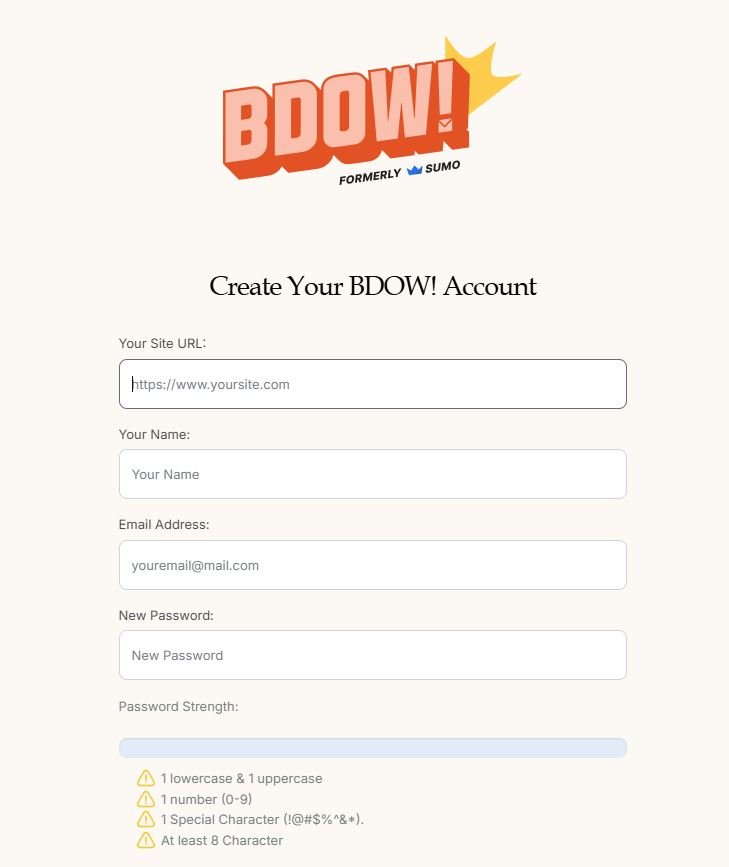
- Visit BDOW and register for an account.
- Enter your website URL.
- Enter your email address.
- Create a secure password.
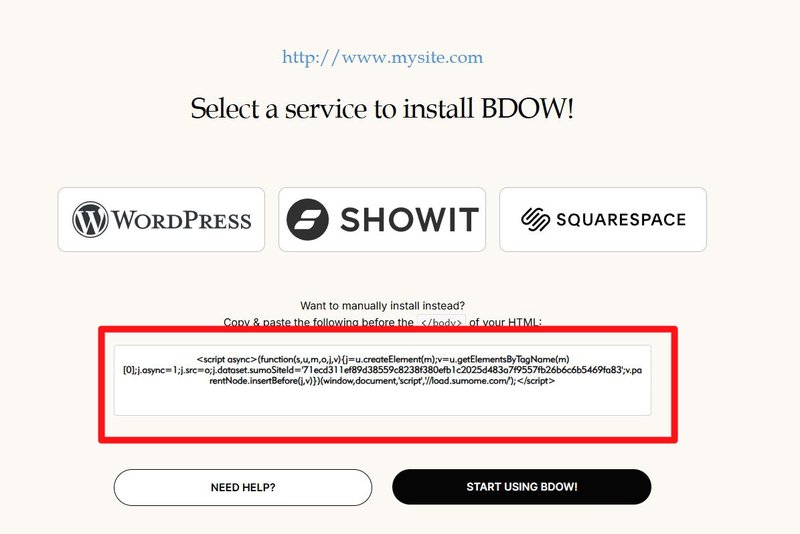
You will then be redirected to a screen displaying a script.
- Make note of this script.
- You will manually install it inside Google Tag Manager in the next steps.
Manually Install BDOW in Google Tag Manager
Note: The direct integration between BDOW and Google Tag Manager may not function correctly, so follow the manual installation process below.
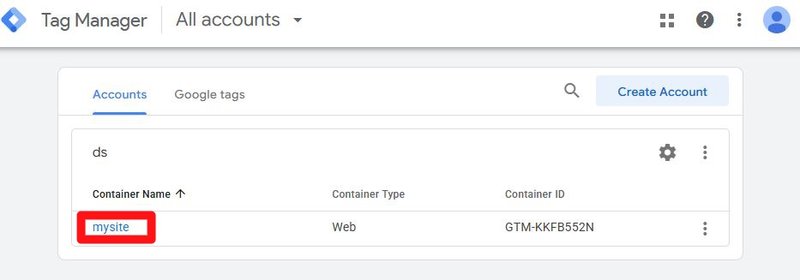
- Open tagmanager.google.com in a new browser tab.
- Select the ‘Container Name’ for the website where you want to install BDOW.
In the left-hand sidebar:
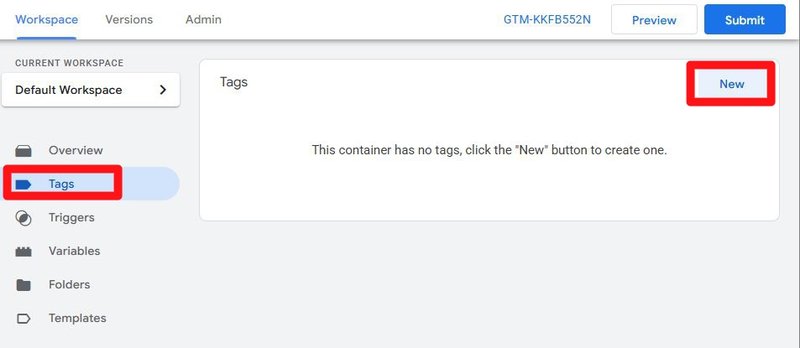
- Click ‘Tags’
- Click ‘New’
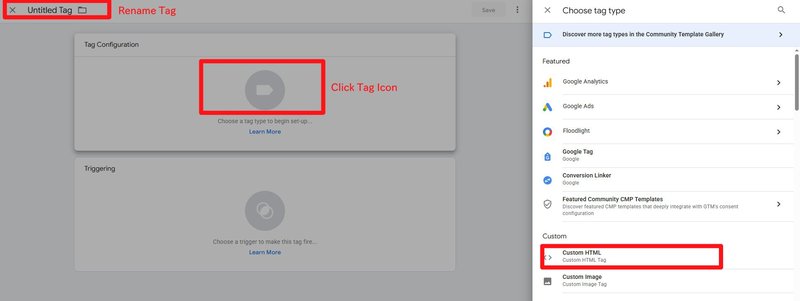
Rename the tag to something clear and descriptive, such as:
- “BDOW_GTM_Integration”
Note: When creating new tags, it is best practice to establish a consistent naming convention from the outset. This keeps your Google Tag Manager account organised and easy to manage long-term.
A recommended naming structure is:
- [Abbreviated Tool Name]_[Purpose of Tag]
Click on the tag configuration box labelled ‘Choose a tag type to begin setup.’
- In the search field, type ‘HTML’
- Select the ‘Custom HTML’ tag type
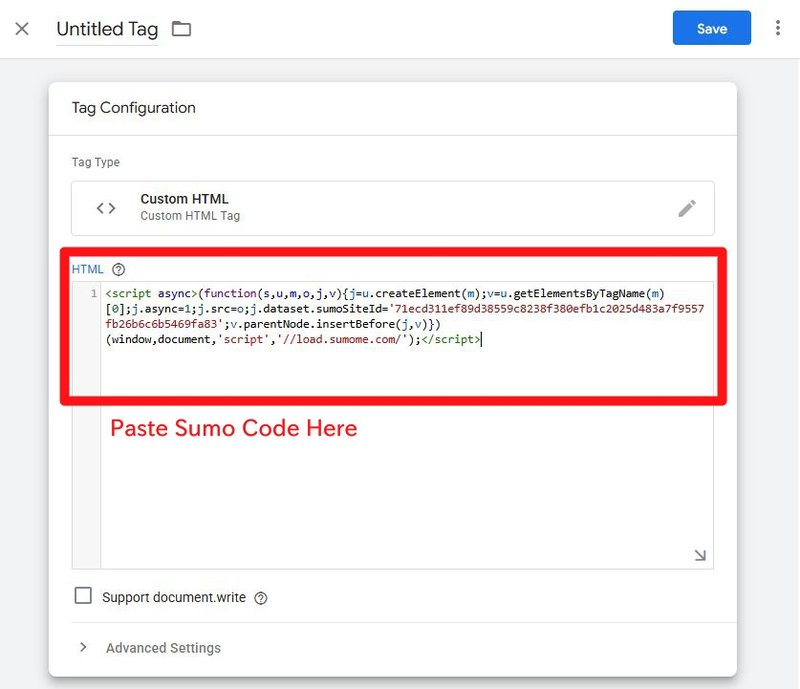
Copy the BDOW script from the BDOW registration tab and:
- Paste it into the ‘Custom HTML’ field inside Google Tag Manager
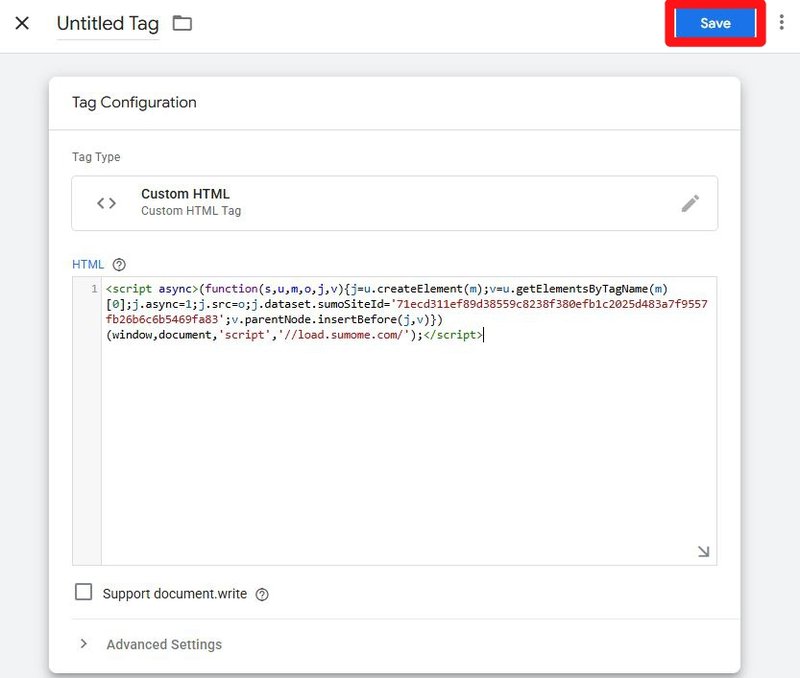
Still within the tag configuration panel:
- Scroll down to ‘Triggering’
- Click the icon
- Select ‘All Pages’
- Click ‘Save’
Next:
- Click ‘Tags’ in the left sidebar
- Confirm your newly created tag appears in the list
- Click ‘Submit’
You will be prompted to enter:
- A Version Name
- A Version Description
Then click ‘Submit.’
Note: While adding a version name and description is optional, it is strongly recommended. Clear version notes make it much easier to track changes over time, particularly if multiple team members, contractors, or agencies are managing the account.
To test whether the BDOW tag is firing correctly:
- Click ‘Preview’

Enter your website URL and:
- Click ‘Connect’
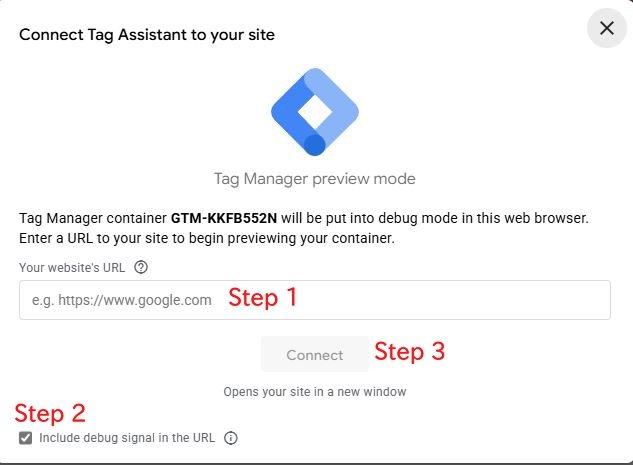
Your website will open in a new tab.
- Look for the message in the corner confirming the Tag Assistant debugger is connected successfully.
Google Tag Assistant (https://tagassistant.google.com/) will display your tag activity.
- Review the list of fired tags.
- Confirm your newly created BDOW tag appears in the list.
Navigate to several other pages across your website and:
- Repeat the process
- Confirm the BDOW tag fires consistently on all pages
Log in to BDOW using the badge on your website
Once BDOW has been installed successfully, accessing it is straightforward.
- Visit your website homepage.
You should see the BDOW badge located in the top right-hand corner of the page.
If the badge does not appear:
- Temporarily disable any ad blockers
- Refresh the page
To access your account:
- Click the BDOW badge
- Log in to your BDOW dashboard
That’s it. BDOW is now installed on your website, giving you access to a powerful suite of tools to help automate and accelerate your website growth.