If your business is visually driven, think eCommerce, lifestyle brands, home décor, wellness or fashion, Pinterest can be a powerful tool for driving traffic and sales. It is not just about sharing pretty photos. It is about building brand presence, nurturing your audience, and appearing in search results long after your post goes live.
If you are working with an agency or hiring a freelance social media coordinator, they will need access to your Pinterest account. But before you send off your login details in a text message (please don’t), let us talk about the right way to do it.
This guide will show you:
- How Pinterest account access works
- The difference between personal and business accounts
- How to set up access through Pinterest Business Hub
- How to manage roles and permissions
- What to do when the partnership ends
Let us get you sorted.
Why Not Just Share Your Password?
You would be surprised how many businesses still share login credentials by email or message. It feels quick and easy, but it opens you up to unnecessary risk.
Why this is a bad idea:
- You cannot control what is changed
- You have no visibility into actions taken
- If something goes wrong, you cannot trace it
- You are breaching Pinterest’s terms of service
- It is a nightmare to clean up when the partnership ends
Thankfully, Pinterest offers a much better way to work with collaborators, without compromising your security.
Step 1: Make Sure You Have a Pinterest Business Account
If you are using Pinterest to grow your business, you should already be on a business account. This unlocks analytics, ad tools and role-based access management.
To check:
- Go to business.pinterest.com
- Log in with your existing account
- If you see Analytics and Ads in your navigation bar, you are on a business account
- If not, upgrade your personal account by going to Settings > Account Management > Convert to Business Account
It is free and takes less than five minutes.
Step 2: Set Up Pinterest Business Hub (If You Have Not Already)
The Business Hub is Pinterest’s central place for managing collaborators, partners and advertisers.
To access it:
- Visit ads.pinterest.com
- Log in
- You will land on a dashboard where you can manage users, permissions, ad accounts and audiences
From here, you can add agency partners or assign roles to in-house team members.
Step 3: Add the Agency as a Business Manager Partner
If your agency uses Pinterest Business Manager, this is the most secure way to grant access.
Here is how:
- Go to your Business Access settings
- Click Partners
- Choose Add Partner
- Enter the agency’s Business ID (they will provide this)
- Select the assets you want to share (your Pinterest Page, ad account, audiences, etc.)
- Assign their level of access, either Admin or Employee
They will receive a notification to accept the request.
Admin access gives them full management ability. Employee access is more restricted, but still allows them to post and manage campaigns.
Step 4: Add the Agency to Your Pinterest Ad Account (If Applicable)
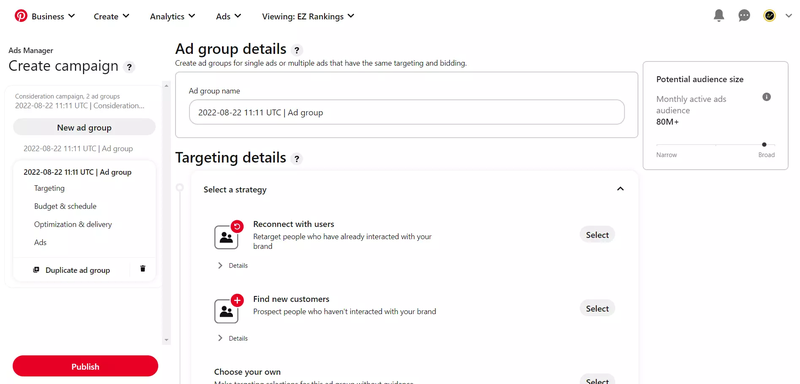
If the agency is running promoted pins or ad campaigns on your behalf, they will need access to your ad account.
To do this:
- Go to Ads Manager
- Click the gear icon > Ad Account Settings
- Choose Add People
- Enter the agency’s email
- Assign a role:
- Business Manager Admin
- Analyst (can view reports only)
- Campaign Manager (can run and manage ads)
Only give access to what is necessary based on their responsibilities.
Step 5: Share Brand Assets Through Pinterest Tools
While Pinterest itself does not store brand kits the way Canva does, you can still organise creative assets in a way that makes collaboration easier.
Create a private board for:
- Brand logos
- Product images
- Colour swatches
- Moodboards or style guides
- Example pins you love
Then share the board with your agency as a collaborator. This is a great way to ensure brand consistency without relying on external tools.
What Each Role Can Do
Here is a quick breakdown of the typical access levels available in Pinterest Business tools:
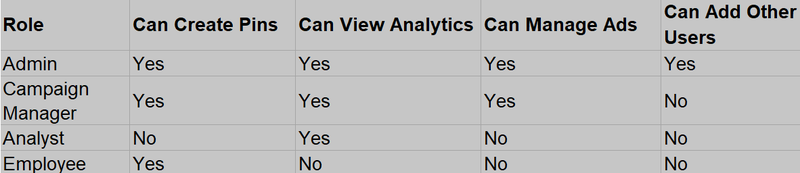
Choose based on what your agency will be doing. If they are only designing Pins and scheduling posts, Employee is fine. If they are managing full campaigns, Admin is appropriate.
What to Avoid When Sharing Access
Pinterest access is simple, but mistakes can still happen. Avoid the following:
Granting Full Admin Access to Everyone
If your agency only needs to post content, do not give them full control. Only assign Admin rights when absolutely necessary.
Forgetting to Review Active Users
Old collaborators or ex-employees can remain in your account for months if you do not review user roles. It is also worth checking in with your marketing consultant to audit access levels and make sure your Pinterest workflows align with campaign strategy. Check your settings regularly.
Ignoring Notifications
If Pinterest alerts you about unusual activity, investigate immediately. It might be a simple mistake, or something more serious.
How to Revoke Access or Change Permissions
When your agency contract ends, or roles shift, you need to tidy up your permissions.
To remove access:
- Open Business Access
- Click Partners or People
- Select the user or partner
- Click Remove or Edit Role
Changes take effect instantly, and the person will no longer be able to access your Pinterest assets.
How to Work Smoothly With an Agency on Pinterest
Access is just one piece of the puzzle. If you want the relationship to run smoothly, be proactive in your communication and collaboration.
Share a Content Calendar
Let your agency know what promotions, events or launches are coming up. A shared Google Sheet or Notion board can do wonders.
Agree on Approval Workflows
Will they be scheduling Pins without your approval? Or will everything go through you first? Align early to avoid crossed wires.
Provide Feedback Through Comments
Use a visual tool like Canva or Google Docs to leave design feedback before Pins are uploaded.
Track Performance Together
Schedule monthly check-ins to review impressions, saves, clicks and revenue. Pinterest Analytics gives a great snapshot of what is working.
Pinterest Pro Tips for Better Collaboration
Here are a few power-user tips if you are serious about growing your Pinterest presence:
Use Rich Pins
These are Pins that pull metadata from your website (like product info, pricing or recipes). They boost engagement and help Pins last longer.
Keep a Consistent Brand Aesthetic
Whether your agency is designing Pins or scheduling them, use consistent fonts, colours and image styles. Pinterest is a visual search engine, cohesion counts.
Batch and Schedule Pins
You can schedule Pins directly within Pinterest or using tools like Tailwind. Ask your agency to plan content in advance to maintain consistency.
Should You Hire a Social Media Coordinator?

Pinterest is incredibly valuable, but only when used strategically. A dedicated social media coordinator can help you:
- Plan a monthly pinning schedule
- Design click-worthy Pins
- Optimise your boards for SEO
- Run and monitor ad campaigns
- Report on growth and conversions
Whether you are a solo founder or a busy marketing team, an extra set of hands can free you up to focus on the bigger picture. If you are after flexible help without the full-time cost, freelance marketers are a smart way to scale up your Pinterest content without burning your budget.
Ready to take your social media to the next level?
We connect businesses with creative professionals who know how to make social media work, Pinterest included.
Whether you need someone to manage your account part-time or handle a full-blown campaign, we will match you with a coordinator who understands content, strategy and results. Hire a social media coordinator from Cemoh today and make Pinterest a productive part of your marketing mix.