
Goal:
To display social sharing links on your website.
Ideal Outcome:
Website visitors can easily share your content across their social media channels.
Prerequisites or Requirements:
You must have Sumo installed on your website. If Sumo is not yet installed, refer to SOP 024 (web version) for installation instructions.
Why This Is Important:
Social sharing links encourage user engagement and make it simple for visitors to share your content. Proper configuration ensures these links work effectively on both desktop and mobile devices and are easily accessible across all platforms.
Where This Is Done:
Sumo and WordPress.
When This Is Done:
Once for your existing website, and again whenever you create a new website in the future.
Who Does This:
You, or the person responsible for managing the website.
Environment Setup
Ensure you have access to your company’s social media accounts.
Configure the Social Sharing Links on Your Website
For this exercise, we will use a dummy website:
www.asiteaboutpaints.com
Log in to Sumo using the badge in the top-right corner of your homepage. If you are already logged in, click on “My Tools.”
In the left-hand sidebar of Sumo, click Social → Share.
Click “Activate now” to enable the social sharing feature.
Configure Basic Settings
Click “Settings” to choose the social platforms you want to display.
Our recommendation is to start with:
Select only the platforms relevant to your business. We recommend enabling no more than three services to avoid overwhelming users.
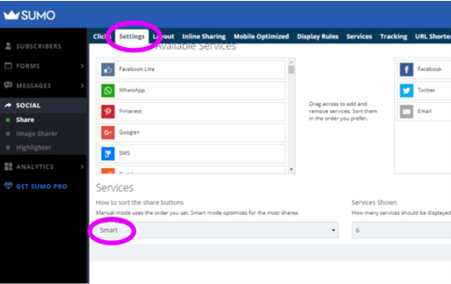
Select the “Smart” option to allow Sumo to automatically reorder the share buttons based on performance.
There are additional settings available, but we recommend leaving them at their default values for now. You can adjust them later if required.
Configure the Layout
Click “Layout” at the top of the screen.
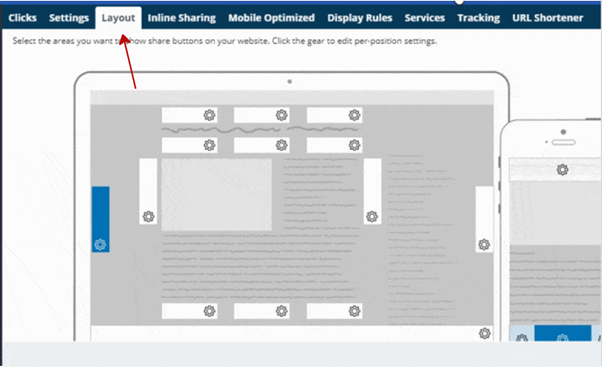
Sumo provides default layouts for both desktop and mobile devices. You can click each position to override global settings for specific placements.
We recommend keeping the default layout, as these positions are user-friendly and work well across most website designs and devices.
Configure Mobile Sharing Links (Optional)
Sumo also allows you to configure mobile-specific sharing links.
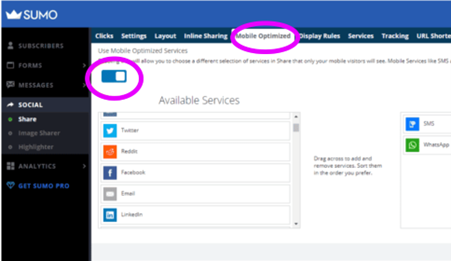
Click “Mobile Optimised.” Click “Enable” to activate mobile sharing options.
Select the services you want to display specifically on mobile devices, such as:
● SMS
Click “Save.”
We recommend selecting no more than three services here as well.
Configure Display Rules
Click “Display Rules” to define where social sharing links should not appear.
Create a list of pages where sharing links is unnecessary or inappropriate. Common examples include:
● Terms & Conditions
● Privacy Policy
● Thank-you pages
● Member-only pages (for membership-based websites)
Scroll down to the “Don’t Show Rules” section.
Here, you can define exclusion rules using several options:
● Exact URL match:
Example:
on URL paths → exactly matching → /privacy-policy
● Exclude entire subdomains or subfolders:
Example (subdomain):
members.asiteaboutpaints.com
Example (subfolder):
www.asiteaboutpaints.com/subfolder/*
We do not recommend using the option “don’t show on URL paths → containing” unless you are very familiar with your website structure, as it may unintentionally exclude important pages.
You may also exclude:
● The homepage
● Pages containing articles
● Mobile or desktop devices
● Visitors from specific geographic locations
Connect Social Media Services
Once display rules are configured, connect your selected social media accounts.
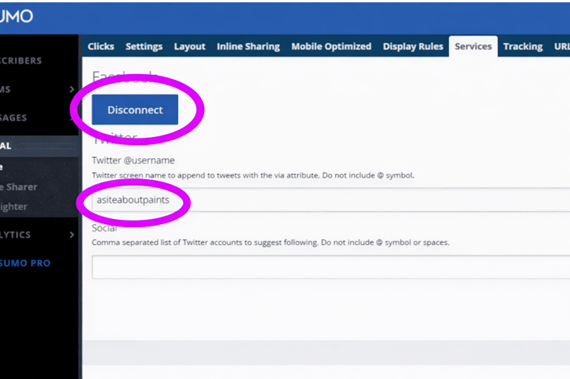
Click “Services.”
● Click “Connect” to log in to Facebook and select the specific company page Sumo is allowed to access
● Enter your company’s Twitter handle
● Click “Save”
That’s it. Your social sharing links are now live on your website. You can now proudly watch your content get shared, and perhaps refresh the page more often than strictly necessary. May the traffic be with you.