Goal: To grant access to your Google Tag Manager account to a new user (employee, contractor, or agency partner).
Ideal Outcome: Your employee, contractor, or agency will have the appropriate level of access to your Google Tag Manager (GTM) account and will be able to implement tracking pixels or other scripts on your website in line with their role.
Prerequisites or requirements:
- You must have Admin access to a Google Tag Manager account.
- Google Tag Manager must already be installed on your website.
If GTM is not yet installed, refer to:
- SOP 004 (web version): Set Up Google Tag Manager on WordPress
- SOP 065 (web version): Set Up Google Tag Manager on Shopify
- SOP 066 (web version): Set Up Google Tag Manager on Squarespace
Why this is important:
Granting the correct level of access ensures that:
- Team members can independently implement tracking codes.
- External agencies can deploy marketing and analytics tags.
- Website tracking remains secure and properly governed.
- You reduce operational bottlenecks caused by restricted access.
Where this is done:
- Google Tag Manager (tagmanager.google.com)
When this is done:
- When onboarding a new employee, contractor, or agency.
- When changing roles or responsibilities.
- When revoking access due to role changes or offboarding.
Who does this:
- A user with Admin access to the relevant Google Tag Manager account.
User Roles in Google Tag Manager
Google Tag Manager has two levels of access:
- Account-level access
- Container-level access
It is essential to understand the difference before granting permissions.
Account-Level Access
Best practice recommendation:
- Maintain at least two account-level Admins.
- Avoid having more than two unless absolutely necessary.
- This prevents loss of access if one Admin leaves the organisation.
Key consideration:
Does the user need to manage other users and their permissions, and do you fully trust them?
If YES:
- Grant “Admin” account-level access.
Important:
- GTM accounts do not have a single owner.
- Admins can remove other Admins.
- A malicious or careless Admin could lock you out of the account.
If NO:
- Grant “User” account-level access.
Container-Level Access
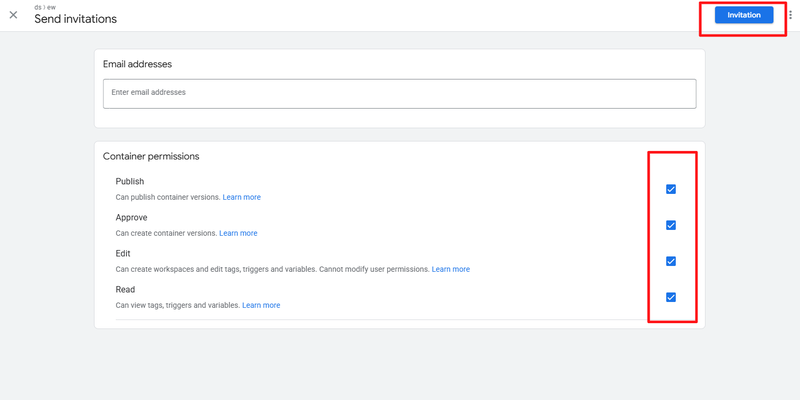
Container-level permissions determine what a user can do within a specific website container.
Available roles:
No Access
- The user cannot see the container.
Read
- The user can view tags, triggers, and variables.
- No changes can be made.
Edit
- The user can create workspaces and edit tags.
- Cannot create versions or publish changes.
Approve
- The user can create versions, workspaces, and edits.
- Cannot publish changes.
Publish
- Full access to create versions, edit, approve, and publish.
Important:
- Only grant “Publish” access to users you explicitly trust.
- Users with Publish access can:
- Deploy scripts site-wide.
- Modify existing tracking.
- Inject potentially harmful code.
- Disrupt live tracking.
Granting Access to Google Tag Manager
Step 1: Log In
- Sign in to your Google Tag Manager account.
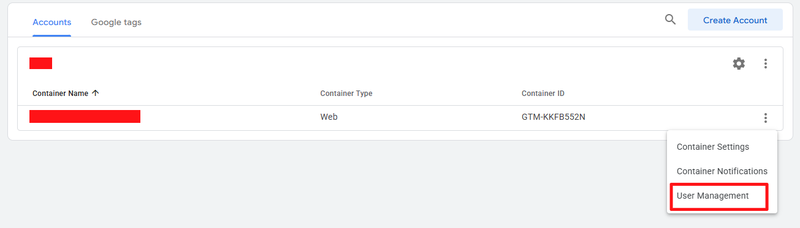
Step 2: Open User Management
- Select the relevant account and container.
- Click the three-dot menu.
- Select “User Management”.
Step 3: Add a New User
- Click the “+” icon in the top-right corner.
- Select “Add users”.

- Enter the user’s email address.
- Choose:
- Account-level permission
- Container-level permission
- Click “Invite”.
Note:
If you are unsure which container-level role to assign, refer to the “Container-Level Access” section above.
Once completed:
- The user will receive an email invitation.
- Access will be granted once they accept.
Removing Access from Google Tag Manager
Step 1: Log In
- Sign in to your Google Tag Manager account.
Step 2: Open User Management
- Click the three-dot menu for the relevant account.
- Select “User Management”.
Step 3: Remove the User
- Locate the user in the list.
- Click the three-dot menu next to their name.

- Select “Remove access”.
The user will immediately lose access to the account or container.
Best Practice Governance Recommendations
- Review GTM user access quarterly.
- Remove access for former employees immediately.
- Avoid granting Publish access unnecessarily.
- Document who has Admin-level permissions.
- Use least-privilege access principles.
By following this process, you ensure your Google Tag Manager account remains secure, well-managed, and operationally efficient.